
Summary
Once you've created a Formtrack and built a form tailored to your needs, the next step is deciding who should complete it. Whether it's individual users, specific departments or the entire organisation, you can define rules that automatically assign forms when certain conditions are met. This guide will walk you through the basics of building allocation rules to assign forms.
Step 1 - Navigate
You can find the allocation rules page on your platform by going to the following whilst logged in as a site administrator:
Site administration > General > Formtrack > *Type* > Template Builder - *Template* > Allocation rules tab
Step 2 - Create
In order to allocate a form to a user you’ll need to start by creating an “Allocation rule”, within which can be one or more "Conditions”, all of which a user must meet in order for the form to be allocated.
Creating the allocation rule
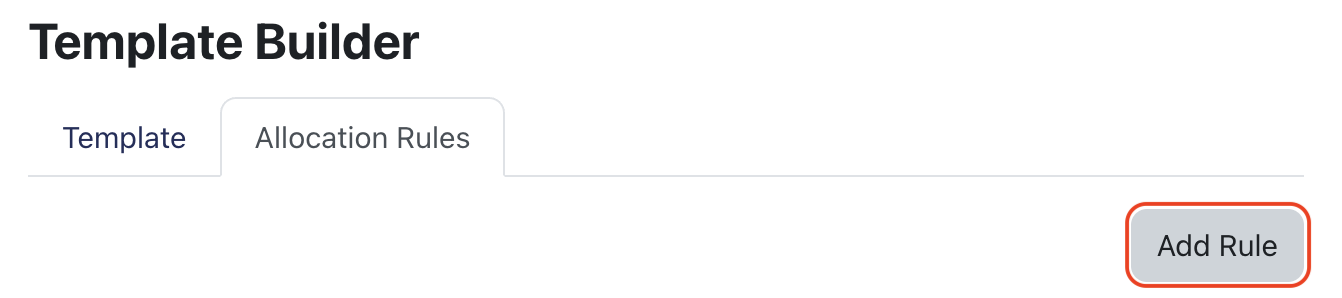
The allocation rule can be created by clicking the "Add rule" button in the top right of the allocation rules tab within the Template Builder.
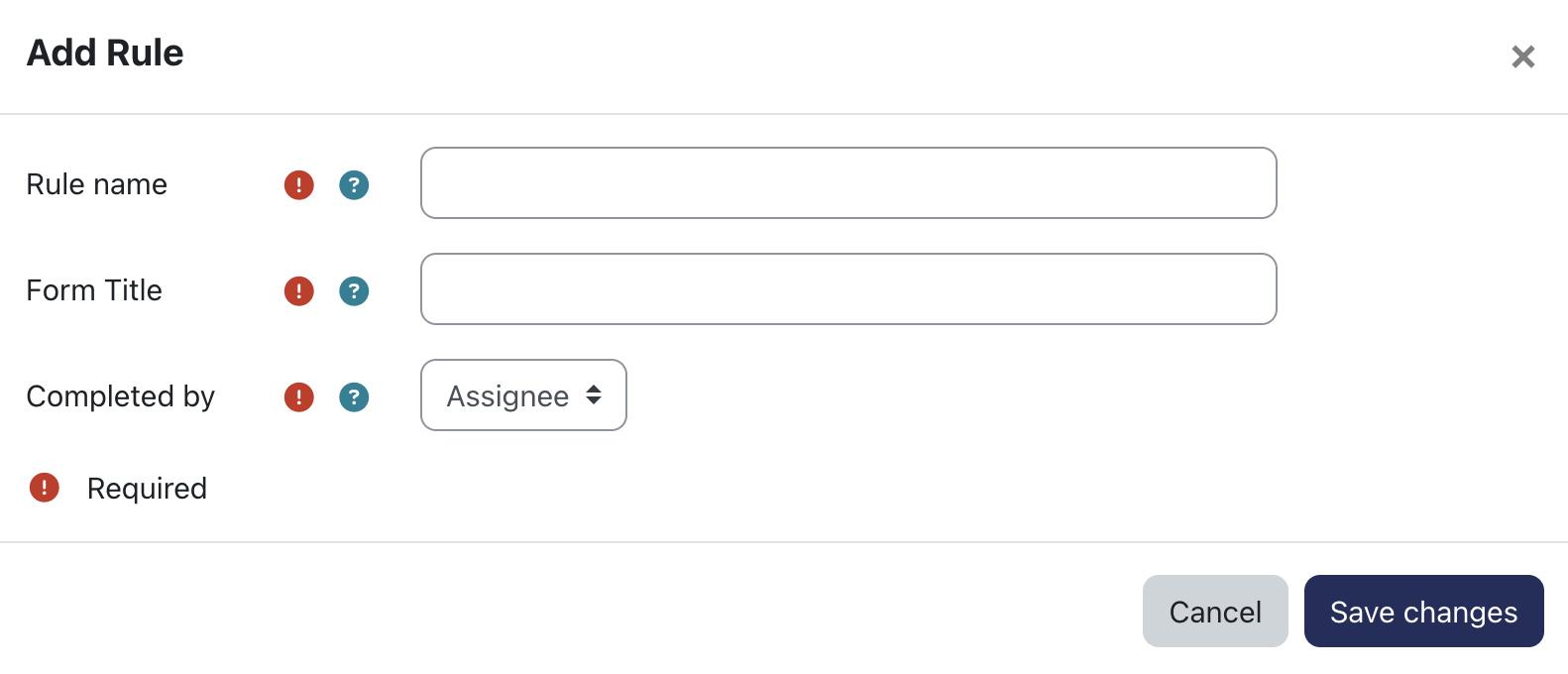
When you click the "Add rule” button a new window will open, allowing you to provide a relevant name for the allocation rule, form title and select who is responsible for completing the form for all users who are assigned the form to complete as part of this specific allocation rule.
Adding conditions to the allocation rule
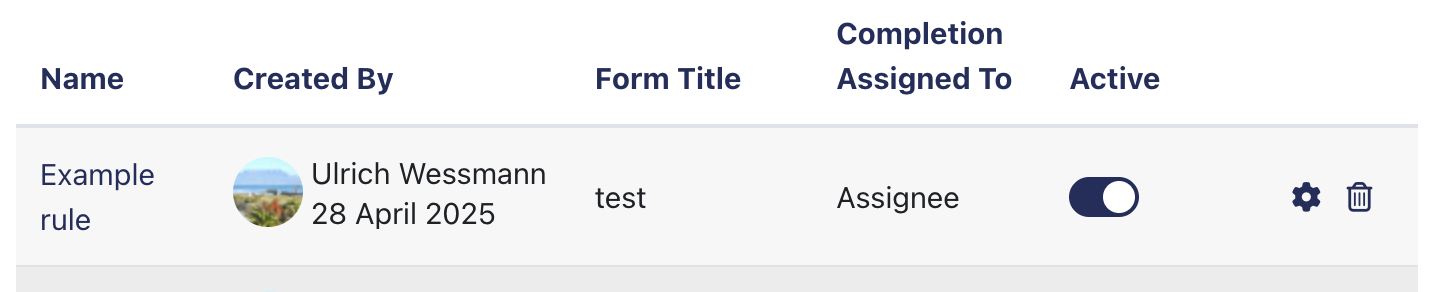
Now that you've created the "empty" allocation rule, it's time to add some conditions which users must meet in to order have the form assigned. To add conditions to your allocation rule you’ll need to click on the name of the allocation rule itself.
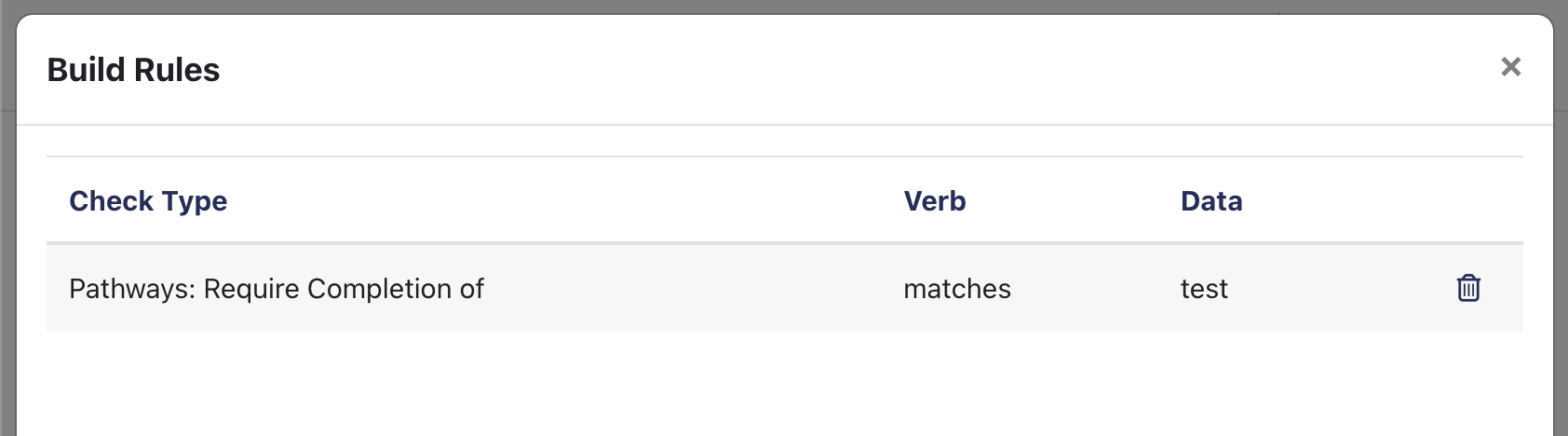
This will take you to the allocation "Build rules" page, where you can then click "Add condition" to add a new condition.

Once you’ve clicked "Add condition" a new window will open on the page as shown below.

This is where you create the condition a user needs to meet as part of the allocation rule. It can be challenging to figure out how best to reach your target users as the grouping can be unique and include a mix of users from across your organisation. We’ve provided some basic examples of conditions that can be used to target unique groups below.
Example 1 - Pathway completion
Assign forms upon completion of a Pathway to gather feedback or collect other relevant information.
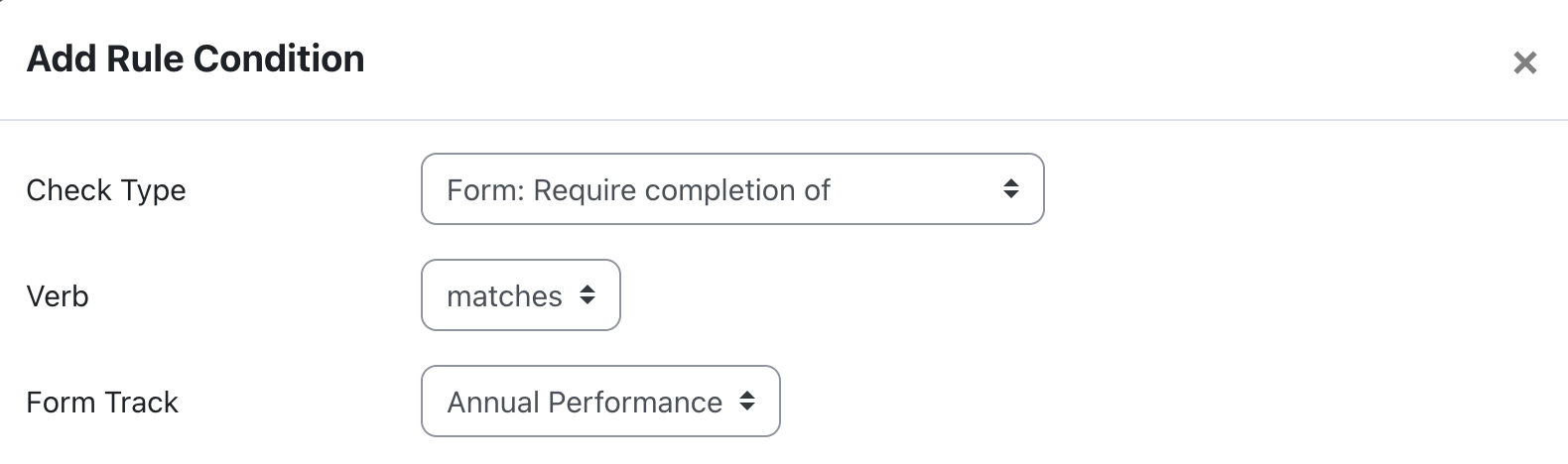
Example 2 - Completion of another form
Trigger actions such as gathering feedback, asking follow up questions or requesting document uploads once a previous form has been completed.
Step 3 - Enable
Once you’ve built your allocation rule and established one or more conditions within the rule which a user must meet to be allocated a form, you can activate the allocation rule. To do this, click the toggle underneath the heading "Active" within your allocation rules page.
This process isn’t instant, as it requires a scheduled task to run within the back end of your site in order for users to start being allocated. This can take around 5 minutes and in some cases longer if there are a large number of users being allocated the appropriate forms.
If you require the allocation rule to continuously run to bring in new users that match the established conditions then the allocation rule can remain active. If the allocation rule only needed to be used once, then you can disable the allocation rule by re-clicking the "Active" toggle, this won’t impact any users who have already been allocated forms using this rule.