
Summary
The login page can be customised to match your organisation’s branding and user experience needs. If you're using the Roadmap login page, this guide will show you how to change the background image, modify text, and enable new login methods on the login page.
How To:
Step 1 - Changing the Background Image and Logo
You can update the login page background image by going to the following page, whilst logged in as a site administrator:
Site administration > Appearance > Login Rules > Edit
On this page, scroll down to the Images section and you can then upload a new Background Image to be used on the login page.

In this same section, you can also update the Logo or Footer image displayed on the login page by uploading a new file to these respective sections.

Step 2 - Editing Login Page Text
To edit any specific text elements appearing on the login page, you'll be able to do this from the same login rules page as referenced above by going to:
Site administration > Appearance > Login Rules > Edit
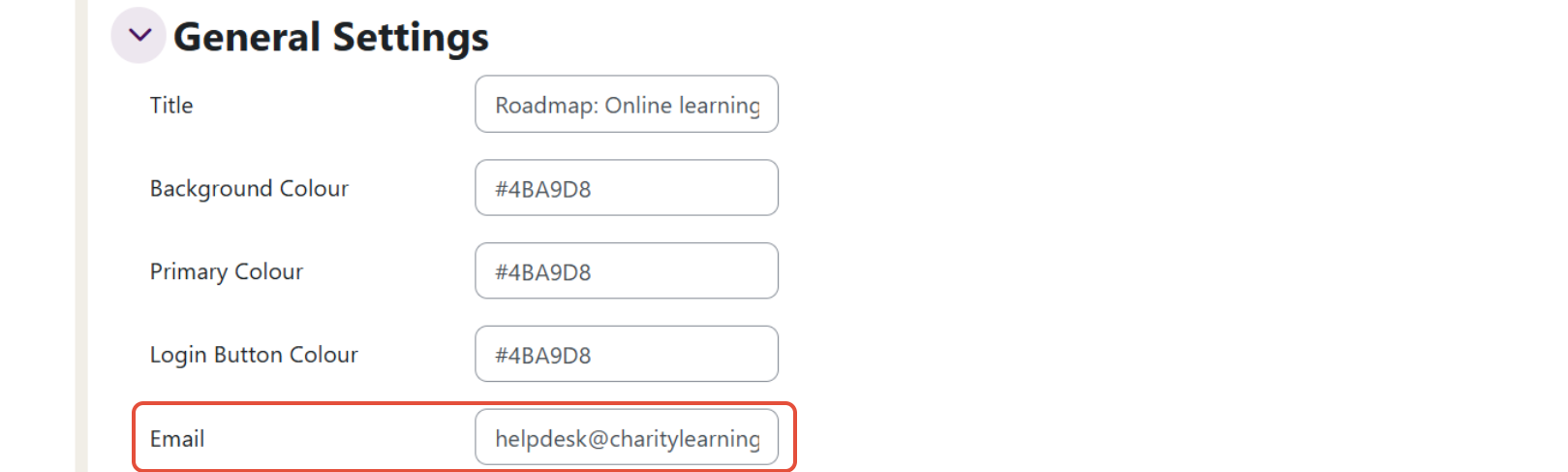
You can then find the section you want to update, click on the text box for that section and update this as required. For example, the Email on the login page can be updated from the Email text box under the General settings, as shown below:
Step 3 - Enabling New Login Methods
Moodle supports various authentications methods, including OpenID Connect, SAML2 and LDAP. To enable a new login method you'll need to go to:
Site administration > Plugins > Authentication > Manage authentication
Locate the desired authentication method and click on the eye icon to enable this, each authentication method will have it's own configuration steps which you can access by clicking the settings option next to the authentication method. The chosen authentication method will need to be fully configures for users to be able to utilise this on the login page.
Once configured, navigate back to the login page editor below:
Site administration > Appearance > Login Rules > Edit
Then you can enable the Office 365 or Redirect option (depending on the authentication method you've chosen). It's important to note, when enabling an additional form of authentication this takes precedence on the login page,so you'll need to ensure you enable the manual account link to allow Administrators to access the platform, this is done by adding text or a link to the following section:

Step 4 - Advanced Login Page Settings
To access advanced login page appearance settings you'll need to go to:
Site administration > Appearance > Login Rules > Edit
On this page scroll down to the Advanced Settings section and open this to view a range of other changes which you can make to the appearance of the login page, including; updating the appearance of the login form itself, adding text placeholders and configuring additional change with custom CSS code.
Step 3 - Save and Test Changes
Once you've applied all of your desired changes you can click the Save button at the bottom of the login page editor and the preview window at the top of the page will update to reflect these changes, you can then also log out of the platform to view the login page to ensure this customisations appear as expected.