
Summary
The login page can be customised to match your organisation’s branding and user experience needs. This guide will show you how to change the background image, modify text, and enable new login methods on the login page. If you're using the old login page format, please refer to the guide for editing this here: How to Update the Roadmap Login Page
How To:
Step 1 - Changing the Background Image and Logo
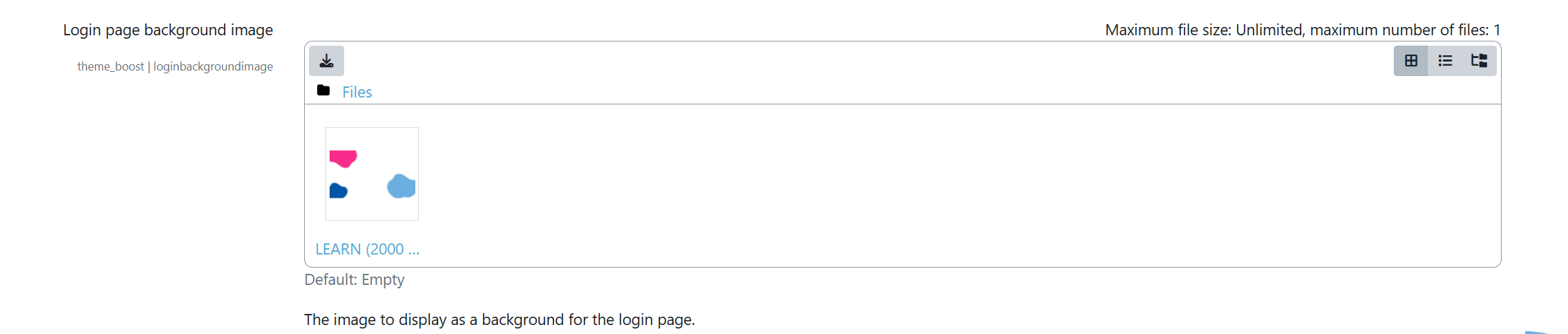
You can update the login page background image by going to the following page, whilst logged in as a site administrator:
Site administration > Appearance > Themes > Boost
Under the Login page background image section,, simply upload a new image file and Save Changes to apply this.
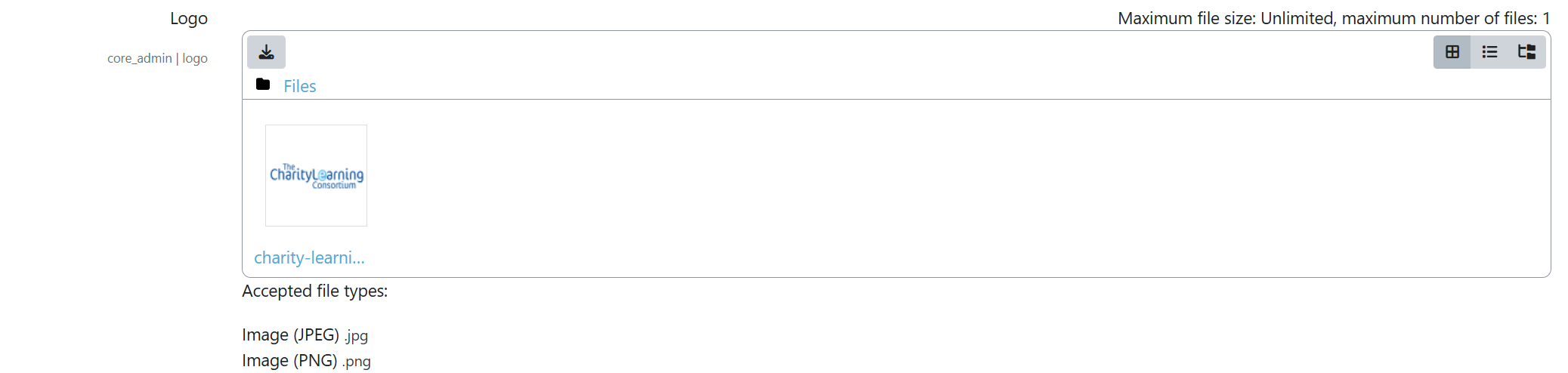
To update the logo used on the login page, go to the following page:
Site administration > Appearance > Logos
You can then update the the Logo option by uploading a new image file.
Step 2 - Editing Login Page Text
It is possible to edit specific text elements displayed on the login page, however, this can be a more technical process so we'd only recommend doing so if you're confident with making these changes.
To change the text on the login page you'll need to go to:
Site administration > General > Language > Language customisation
Select the English language pack and click Open Language Pack for Editing. Once open, you'll be able to search for login page-related strings (text) to modify this.
For more in-depth guidance on how to search for/edit text, please refer to the following guide: How to Update Notification Text
Step 3 - Enabling New Login Methods
Moodle supports various authentications methods, including OpenID Connect, SAML2 and LDAP. To enable a new login method you'll need to go to:
Site administration > Plugins > Authentication > Manage authentication
Locate the desired authentication method and click on the eye icon to enable this, each authentication method will have it's own configuration steps which you can access by clicking the settings option next to the authentication method. The chosen authentication method will need to be fully configured for users to be able to utilise this on the login page.
Step 4 - Additional Login Page Settings
To access additional login page appearance settings you'll need to go to:
Site administration > Plugins > Authentication > Manage authentication
On this page scroll down to the Common Settings, you'll then see various additional options which are available such as enabling autofocus on the login page form or adding instructions to the login page to provide additional guidance for users accessing the platform.
Step 3 - Save and Test Changes
Once you've applied all of your desired changes you can log out and test the login page to ensure this customisations appear as expected.